iPhone and iPad guide · Updated November 2026
iPhone screen mirroring to Android TV and Google TV.
Tap Screen Mirroring on an iPhone or iPad and most Google TVs and Android TVs are missing from the list. With Telebeam open on the TV, it’s there: tap Screen Mirroring, choose the TV. Nothing to install on the iPhone.
For Google TV and Android TV · 7-day free trial · No ads · Open source (GPL-3.0)
Why the TV isn’t in your iPhone’s list
Screen Mirroring on an iPhone or iPad works like the Mac’s: it uses Apple’s AirPlay technology and only lists devices with a receiver for it. Most Google TVs and Android TVs don’t have one built in, so the list stays empty.
Telebeam is that receiver, as an app on the TV. It’s made around the Mac’s Screen Mirroring, and iPhone and iPad work with it too. You install it on the TV only; on the iPhone you use the Screen Mirroring that’s already in Control Center.
Set it up
1. Install Telebeam on the TV
- Google TV: open the Apps tab or Search on the home screen and look for Telebeam.
- Android TV: press Home, open the Google Play Store and search for Telebeam.
It runs on TVs from Sony, TCL, Hisense, Philips and others with Google TV or Android TV, and on Chromecast with Google TV, Google TV Streamer, Nvidia Shield and Android TV boxes.
2. Open Telebeam on the TV
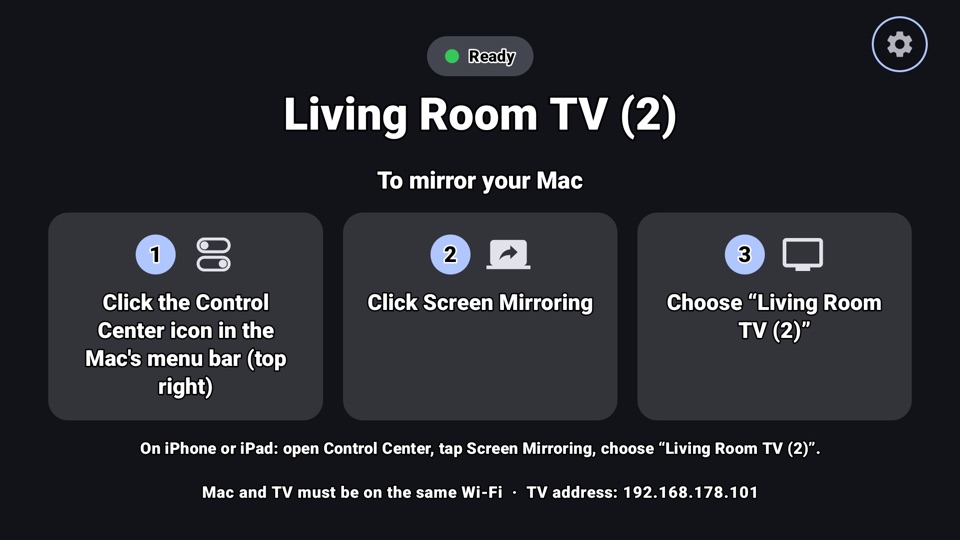
The TV shows its name and the steps, with the ones for iPhone and iPad at the bottom. You can rename the TV in Telebeam so it’s easy to find.
3. On the iPhone or iPad: Control Center → Screen Mirroring
Open Control Center and tap Screen Mirroring. The iPhone and the TV must be on the same Wi-Fi.
4. Choose the TV
Your iPhone’s screen appears on the TV. If nothing appears in a few seconds, choose the TV again.
Good to know
- Same Wi-Fi. Guest, hotel and many office or school networks keep devices from seeing each other; use your main home network.
- Two TVs with almost the same name? Your TV has its own mirroring receiver built in as well, so Telebeam names itself with “(2)” at the end. Pick the “(2)” one for Telebeam.
- TV without Google TV? A Chromecast with Google TV or Google TV Streamer plugged into it can run Telebeam. An older Chromecast without a remote can’t: it has no app store.
- Have a Mac too? The same TV shows up in the Mac’s Screen Mirroring: see Mirror a Mac to Google TV.
- TV missing from the list? The Wi-Fi checks in Mac doesn’t see my TV apply to iPhone and iPad too.
Tested on a Philips Google TV so far; if it doesn’t run well with your iPhone or iPad, write to support@telebeam.app during your trial.
Questions people ask
Can I screen mirror my iPhone to an Android TV without an app on the iPhone?
Yes. With Telebeam open on the TV, use the Screen Mirroring in your iPhone’s Control Center. Telebeam runs on the TV only.
How do I mirror my iPhone to Google TV?
Install Telebeam on the Google TV and open it. On the iPhone, open Control Center, tap Screen Mirroring and choose the TV.
Does it work with an iPad?
Yes. On an iPad it’s the same: open Control Center, tap Screen Mirroring, choose the TV.
Why doesn’t my Android TV show up in my iPhone’s Screen Mirroring?
Check that Telebeam is open on the TV and that the iPhone and the TV are on the same Wi-Fi. Guest, hotel and many office or school networks keep devices from seeing each other.
Do I need an Apple TV?
No. With Telebeam open on a Google TV or Android TV, the TV itself appears in the Screen Mirroring list.
More Telebeam guides
Your iPhone on the big screen
Install Telebeam on the TV, then choose it in Screen Mirroring on your iPhone or iPad.
For Google TV and Android TV · 7-day free trial · No ads · Open source (GPL-3.0)